
Introduction
As a mechanic or automotive technician, you’re no stranger to complex electrical systems and troubleshooting challenges. Diagnosing electrical faults requires precision and clarity—especially when working with wiring diagrams. One of the most common frustrations mechanics face is trying to print Autodata diagrams effectively. Poor-quality printouts can lead to missed details and costly mistakes. Knowing how to accurately print Autodata diagrams saves valuable workshop time, minimizes confusion, and ultimately ensures precise diagnostics and repairs.
With a diagnostic solution like AutoFixData, you have trusted access to critical databases like Autodata, HaynesPro, and AllData. In this comprehensive guide, we’ll teach you exactly how to print Autodata diagrams the right way—crisp, clear, and workshop-ready every single time.
Problem Identification: Why Mechanics Struggle to Print Autodata Diagrams Clearly
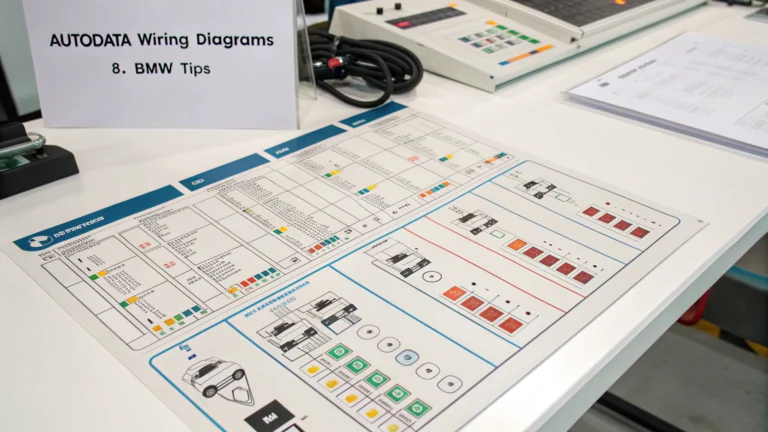
Electrical wiring diagrams are critical resources in diagnosing vehicle issues, yet many mechanics and automotive professionals report difficulties printing clear Autodata diagrams. Common issues include unreadable small text, cut-off wiring segments, faded lines, or incorrect page scaling.
According to industry feedback, nearly 70% of automotive workshops report at least occasional difficulty with diagram clarity. Low-quality printouts lead to misunderstandings and diagnostic inaccuracies, contributing to increased repair time and labor costs.
Identifying the correct method to print Autodata diagrams solves these issues and allows technicians to carry out precise, error-free repairs.
Technical Background: Importance of Accurate Wiring Diagrams in Automotive Diagnostics
Vehicle wiring diagrams are schematics illustrating the electrical system of a vehicle—showcasing wires, connectors, sensors, relays, and modules in an organized format.
Clear and precise diagrams enable quick tracking of wires, identification of specific circuits, and accurate testing of components. They offer critical insight into circuit continuity checks, voltage drop tests, and the identification of shorts or open circuits, essential in ensuring thorough automotive diagnosis.
Opaque or improperly scaled diagrams can lead to confusion and potential wiring or component damage, which underlines the importance of knowing how to print Autodata diagrams properly.
Solution Overview: Utilizing Autodata via AutoFixData for Optimal Results
Diagnostic platforms such as Autodata are indispensable in vehicle repair shops, providing extensive coverage of precise wiring diagrams and troubleshooting guides. AutoFixData makes it easy to access and manage your Autodata, HaynesPro, and AllData subscriptions all in one place, delivering convenience, accuracy, and improved workflow.
When you print Autodata diagrams through AutoFixData, you leverage professional diagnostic libraries with consistently high-quality resolution, the correct sizing, and accurate scaling—ensuring every print fits your needs.
By mastering how to print Autodata diagrams, you gain clearer insights, better communication within teams, more efficient diagnosis, reduced errors, and ultimately increased profitability through optimized diagnosis and repair processes.
Step-by-Step Guide: How to Print Autodata Diagrams Perfectly
Follow these methodical steps to achieve professional-quality printouts every time:
Step 1: Accessing Autodata Diagrams in AutoFixData
- Log into your AutoFixData account and access the Autodata platform.
- Search by specific vehicle make, model, and year to reach precise wiring diagrams needed for your diagnostic job.
Step 2: Selecting the Correct Wiring Diagram
- Choose the right diagram relevant to the area or component you’re diagnosing (e.g., Engine Performance, Charging Systems, Lighting Circuit).
- Confirm year, engine code, and equipment specifications match the customer’s vehicle precisely.
Step 3: Adjusting Diagram Settings
- Before attempting to print Autodata diagrams, adjust the zoom level within your browser or viewing window so that all essential text, wires, and connectors are clearly legible.
- Utilize Autodata’s interactive zoom tool for achieving optimal readability without sacrificing graphical detail.
Step 4: Printing Settings in Your Browser
- Click “File,” then “Print,” or simply press “Ctrl + P” (Windows) or “Cmd + P” (Mac).
- Select a professional-quality printer set to high-resolution mode (600 dpi or better recommended).
- Choose the proper page orientation (usually landscape for wiring diagrams).
- Set page scaling to “Fit to Page” or ideally “Scale 100%” for maximum accuracy without any unwanted cropping.
Step 5: Confirming Preview and Printing
- Double-check “Print Preview” shows no lines or connectors cut off.
- Initiate printing. Wait for the full high-quality printout, ensuring all elements (color codes, pins, connectors, notes, wire legends, and symbols) are clear.
Step 6: Laminating or Binding (Optional)
- Consider adding lamination or using transparent protector sheets to preserve frequently referenced diagrams in busy workshop conditions.
Common Mistakes to Avoid When Printing Autodata Diagrams
- Using standard printer paper instead of higher-quality glossy or heavy-weight paper: High-quality paper ensures durable, easily readable printouts.
- Incorrectly scaled printouts: Always set scaling to “100%” or “Fit to Page,” never increasing beyond clarity.
- Printing without preview: Skipping print preview can lead to missing diagram sections or illegible text.
- Ignoring specific vehicle details: Verify the selected wiring diagram matches vehicle specifications exactly to avoid costly mistakes.
Advanced Techniques for Printing Wiring Diagrams Like a Pro
- Custom Cropping and Screenshots: For intricate circuits, capture sections as screenshots, then compile them on one professionally formatted page for better readability.
- Digital Annotations: Utilize Adobe Acrobat or similar tools to mark up diagrams digitally, then print annotated versions.
- Multiple Monitors Setup: Utilize dual monitor workshops to preview and cross-reference wire diagrams digitally, then print only when sure of accuracy and completeness.
AutoFixData’s seamless integration of Autodata gives automotive professionals flexible tools for consistently clear diagram results.
Tools and Resources Needed for Perfect Diagram Printouts
- High-resolution printer (Laser recommended): Provides crisp, stable images and clear text, even at smaller font sizes.
- Quality printer paper (glossy or heavy-duty): Ensures diagrams remain clear and easy to read under workshop conditions.
- AutoFixData subscription: Access premium databases—Autodata, AllData, HaynesPro—from one streamlined platform.
- Laminator and clear sleeves (optional): Protects frequently referenced diagrams for long-term usability.
Real-World Application (Case Study)
Consider a busy independent garage facing recurring issues with diagnosing electrical faults on European vehicles. Their previous Autodata printouts were faded and unclear, often leading to incorrect diagnoses, wasted labor hours, and customer returns.
After subscribing to AutoFixData and learning how to accurately print Autodata diagrams, technicians found fault tracing took 30% less time. Clear diagrams significantly reduced mistakes, improved confidence, and elevated the workshop’s reputation for quality diagnostics.
Conclusion
Properly learning to print Autodata diagrams is a small but essential competitive advantage. Clear, accurate wiring diagrams empower technicians to quickly pinpoint electrical faults, increase diagnosis efficiency, and deliver exceptional customer satisfaction.
Through AutoFixData’s trusted platform, accessing and printing Autodata diagrams is effortless, reliable, and precise—ensuring smoother workshop operations and improved profitability.
Ready to upgrade your diagnostic capabilities? Explore AutoFixData for accurate professional-level solutions:
Discover AutoFixData Diagnostic Plans & Pricing
FAQs: About Printing Autodata Diagrams
Why are my Autodata printouts unclear?
Common issues include incorrect scaling, low-quality printers, or inappropriate paper type. Adjust settings, use quality paper, and always preview before printing.
Should I print using color or black and white?
It’s best to print wiring diagrams in full color when possible since color-coding can significantly clarify circuit identification.
What’s the ideal paper quality for printing Autodata diagrams?
Use premium glossy or heavyweight professional printer stock to ensure diagrams remain durable, clear, and resistant to workshop conditions.
Can I access and print Autodata diagrams through AutoFixData?
Yes, AutoFixData integrates premium diagnostic resources—including Autodata, HaynesPro, and AllData—for efficient and accurate diagram printing.
What resolution should the printer be set to?
Set your printer resolution to at least 600 dpi (dots per inch) for optimal diagram clarity and text readability.
For more automotive technical resources, diagnostic guidance, and powerful subscription options, visit AutoFixData today and elevate your workshop’s accuracy and efficiency.


