Troubleshooting Common Autodata Errors
If you’re a mechanic or automotive professional, diagnostic software is likely a cornerstone of your daily operations. Autodata remains one of the most widely used tools in garages and repair shops around the world thanks to its comprehensive vehicle data, fault diagnosis assistance, and service information. However, it’s not immune to occasional technical glitches. One common frustration voiced by mechanics is encountering situations where they find “Autodata not working,” disrupting workflow, delaying repairs, and impacting profitability.
Whether you’re struggling with application crashes, data retrieval errors, or software compatibility problems, you know how quickly these issues can escalate, consuming valuable time and resources. Thankfully, platforms like AutoFixData.com make addressing and solving these issues easier by providing robust diagnostic software solutions including Autodata, AllData, and HaynesPro at your fingertips.
This comprehensive guide walks you through diagnosing, addressing, and resolving common errors when faced with Autodata malfunctions. We’ll cover the typical problems automotive professionals encounter, explain their technical background, introduce troubleshooting steps, and show you how integrating AutoFixData solutions into your workshop can help streamline diagnostics and repair processes.
Problem Identification: Why Is Autodata Not Working?
When mechanics report that Autodata is not working, they’re often experiencing one of several identifiable issues:
- Application Freezing or Crashing: Occurs when software stops responding or forcibly closes, preventing access to needed technical data.
- Database Errors: Frequent error messages related to missing vehicle data, corrupted information, or incomplete updates leading to delays in repair procedures.
- Compatibility Issues: Problems running Autodata on newer operating systems like Windows 11 or after system updates.
- Licensing and Authentication Errors: Users unable to log in due to trouble with software licensing or user verification servers.
According to internal industry data, garages experience an estimated 4-6 hours of weekly downtime due to these diagnostic software issues. Such interruptions often lead to increased repair times, lost revenue, lower customer satisfaction, and reduced team productivity, emphasizing the critical importance of a smoothly functioning diagnostic tool at your workstation.
Technical Background: Understanding Autodata’s Technical Infrastructure
To understand and troubleshoot Autodata issues effectively, it’s essential to grasp how automotive diagnostic software typically works.
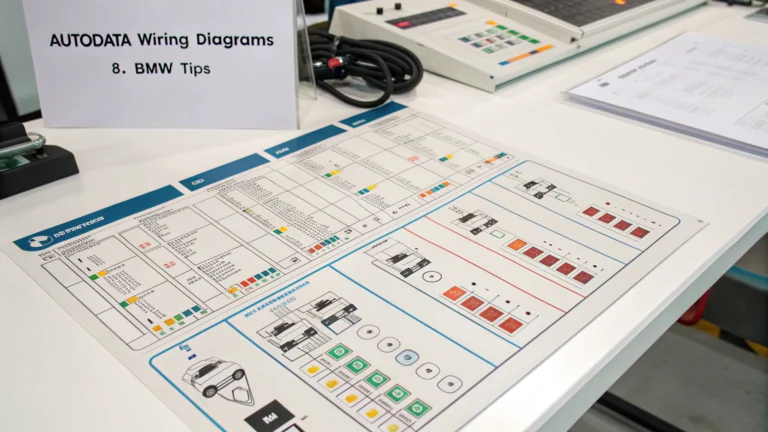
Autodata is a comprehensive auto repair solution database offering wiring diagrams, component locations, diagnostic trouble codes (DTCs), repair instructions, service schedules, and manufacturer-specified procedures for thousands of vehicle models. It is designed to streamline repairs, reduce error potential, and speed up diagnostic accuracy.
This software operates through two core elements:
- Local Installation or Cloud-Based Data: Traditionally installed locally on garage PCs, Autodata recently transitioned many services to cloud-based models, requiring constant internet connectivity for real-time updates and data access.
- Regular Software Updates: Vehicle data rapidly evolves with continuous automotive innovations. Autodata must consistently update its database, which can become problematic if the update services encounter disruptions.
When Autodata is not working, the root cause often lies within these aspects—whether software stability concerns, interrupted database updates, or internet connectivity disruptions.
Solution Overview: Resolving Autodata Errors with Diagnostic Platforms
When your garage encounters situations of Autodata not working, accessing alternative or supplemental diagnostic platforms can be a lifeline. Trusted options including AllData, HaynesPro, and AutoData itself can be reliably accessed through robust platforms such as AutoFixData.com, providing mechanics and automotive professionals multiple redundancies and essential resources.
Among the standout features offered include:
- Comprehensive fault tracking and diagnostic support.
- Manufacturer-approved repair information and wiring schematics.
- Real-time updates and platform versatility to prevent software freeze and data errors.
- Reliable and straightforward update processes through cloud integration.
Step-by-Step Process: How to Fix Autodata Not Working Errors
Follow these structured troubleshooting steps recommended by experienced auto repair professionals to quickly identify and resolve Autodata issues and minimize workshop downtime.
Step 1: Check Internet Connectivity and Stability (For Cloud-based Autodata)
Before moving further, ensure stable internet access:
-Verify router connectivity and reset if needed.
-Run speed tests to confirm connection strength meets Autodata’s requirements (minimum 2-5 Mbps bandwidth recommended).
-Check firewall settings, ensuring Autodata-related domains aren’t blocked.
Tip: Use a backup internet connection—like a mobile hotspot—in emergencies to maintain operational continuity.
Step 2: Verify Autodata’s Licensing and Account Status
Login difficulties often boil down to straightforward account validation:
-Log into your Autodata account through their official site to verify your subscription status and ensure license validity.
-Check for any outstanding renewals or account messages.
Step 3: Restart and Update the Autodata Software
Restarting remains a tried-and-true troubleshooting step:
- Completely close all active instances of the software.
- Re-open Autodata and perform a mandatory update from its update section.
- Confirm successful completion of the update process, as partially completed updates may cause malfunctions.
Step 4: Check for OS Compatibility Issues and Adjustments
Newer operating systems may inadvertently disrupt Autodata:
- Autodata currently recommends compatibility mode adjustments when running Windows 10 or Windows 11.
- Right-click Autodata executable → Properties → Compatibility → choose “Windows 7 or Windows 8” compatibility mode.
- Specify “Run as administrator” for enhanced stability.
Step 5: Reinstall Autodata Software (When Needed)
Reinstallation effectively solves deeply embedded software corruption:
- Uninstall your current Autodata version completely through system settings.
- Download and perform a clean install only from verified sources or official providers.
- Always reinstall by following Autodata’s specific technical instructions.
Pro mechanic tip: Always backup personalized notes, custom vehicle information, and presets before a fresh install.
Common Mistakes to Avoid When Autodata Isn’t Working
Mechanics can waste valuable time due to the following missteps when troubleshooting Autodata:
- Ignoring frequent software updates, leading to significant database emplacements and instability.
- Overlooking OS compatibility warnings (Autodata compatibility mode is your friend).
- Using unofficial or outdated Autodata versions downloaded from non-secure sources.
- Neglecting Internet connectivity and firewall requirements specifically set by Autodata guidelines.
Advanced Techniques: Professional-Level Insights for Optimal Autodata Performance
- Proactively schedule periodic system and Autodata maintenance routines; include regular PC tune-ups, registry optimizers, and system cleaning to keep diagnostic software running optimally.
- Configure dedicated PC hardware designed for diagnostic tasks with enhanced cooling solutions, SSD upgrade, and reliable internet connection to avoid overheating and system slowdown during diagnostics.
- Invest in comprehensive cloud-based diagnostic access through platforms like AutoFixData.com to diversify your diagnostics software resources and prevent total reliance on one platform.
Tools and Resources Needed to Resolve Autodata Errors Efficiently
- Automotive diagnostic computers or laptops meeting Autodata’s hardware requirements (minimum RAM, processor speed, storage).
- Stable broadband internet connection (wired recommended over wireless for Autonomous stability).
- Reliable antivirus and firewall software for security along with proper Autodata whitelisting.
- Subscription access to alternative platforms including AllData, HaynesPro via AutoFixData.com to ensure seamless diagnostic capabilities at all times.
Real-World Application: Quickly Resolving Autodata Software Failure
Mike, an auto repair shop owner in Chicago, recently encountered his Autodata software continuously crashing, hindering his technicians’ diagnostics. Using the outlined troubleshooting steps, Mike identified an interrupted automatic update due to firewall blockage as the culprit. After updating firewall permissions and performing a complete Autodata reinstall, his team returned to streamlined diagnostic workflows. Learning from this, Mike signed up with AutoFixData.com to ensure his workshop now had backup solutions including AllData and HaynesPro, further reducing risk for future downtime.
Conclusion: Maximizing Diagnostics Reliability with AutoFixData.com
Facing Autodata downtime disrupts your garage’s productivity and profitability. However, understanding common Autodata errors and knowing how to troubleshoot them can mitigate those frustrations. Implementing robust platforms like AutoFixData.com gives your team seamless access to critical diagnostic and repair information from not only Autodata, but AllData and HaynesPro as well, dramatically improving your shop’s performance, customer satisfaction, and overall competitive edge.
Visit AutoFixData’s Pricing Page to ensure your diagnostics stay accurate, uninterrupted, and profitable every single day!
FAQs: Autodata Not Working – Answers for Garage Professionals
Q1. Why do I constantly experience Autodata application crashes?
Frequent crashes typically stem from incomplete software updates, corrupted installations, inadequate compatibility adjustments, or insufficient system resources.
Q2. How can I ensure optimal compatibility with Autodata on new operating systems?
Run Autodata in compatibility mode for Windows 7 or Windows 8 and activate administrator privileges in software properties.
Q3. Can I use Autodata effectively without internet access?
Autodata increasingly relies on cloud-based updates. Regular internet access is strongly recommended for full functionality.
Q4. How often should Autodata updates be performed?
Weekly or bi-weekly updates are vital to ensure access to the latest automotive diagnostic information and repair data.
Q5. Why should I choose additional diagnostic software like AllData or HaynesPro?
Having alternative diagnostic sources accessible via AutoFixData.com ensures uninterrupted data availability, enhances productivity, and safeguards your shop against Autodata downtime.